USING THE ACCOUNT
How to play offline and use the account
After signing in to the account sent by the seller, follow these steps to install and play.
-
1
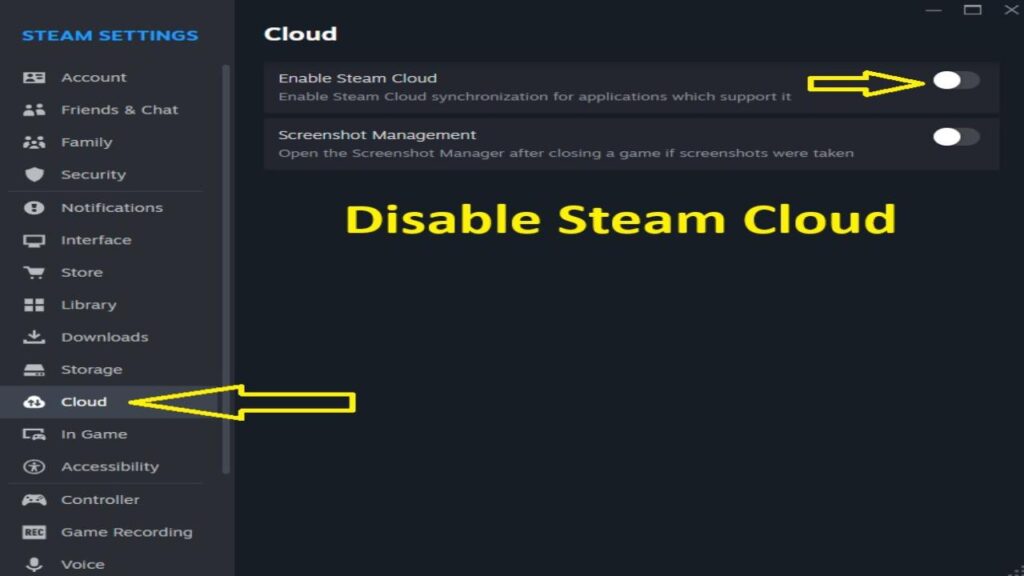
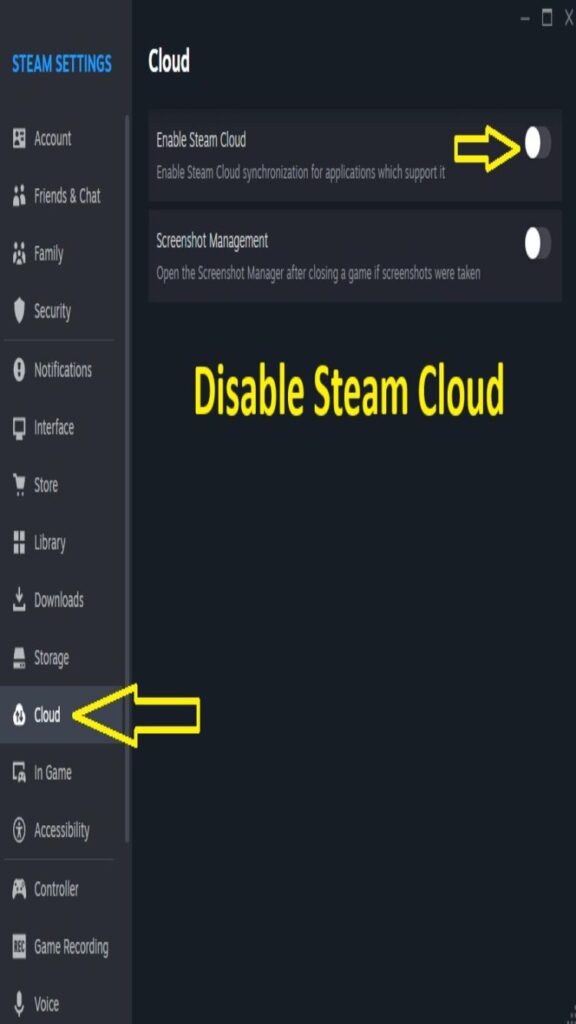
Disable Steam Cloud
Open Steam → Settings → Cloud and disable Steam Cloud. If it is already disabled, leave it that way. Saves will stay on your PC without Steam Cloud synchronization.
-
2
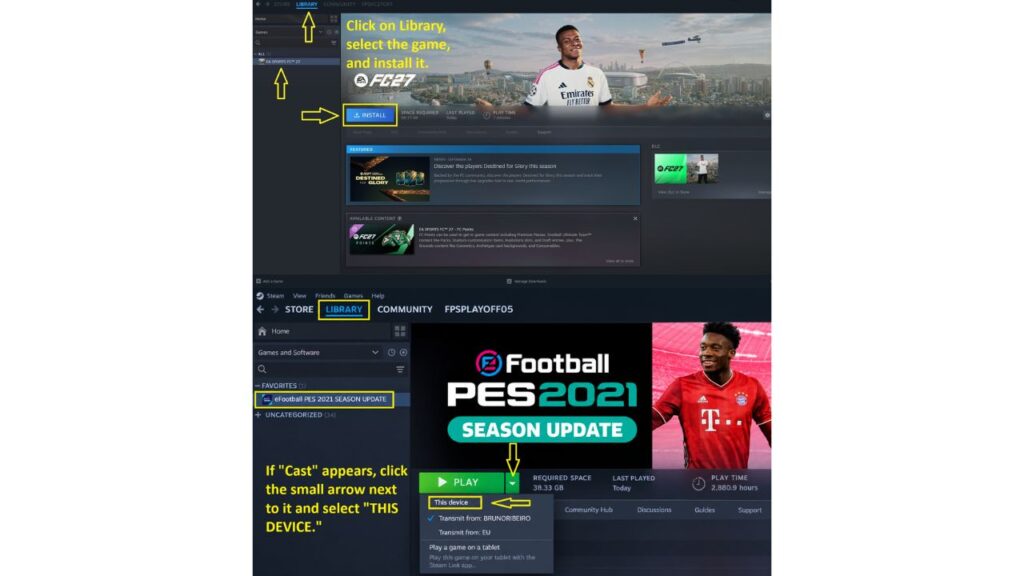
Install the game
Open your Library, select the game on the left and click Install. If you see Stream, click the arrow next to it and choose This device. To install on another HDD or SSD, use Change account to sign in to your personal account. Under Steam → Settings → Storage, add the desired drive. Return to the account sent by the seller and select that location when installing.
-
3
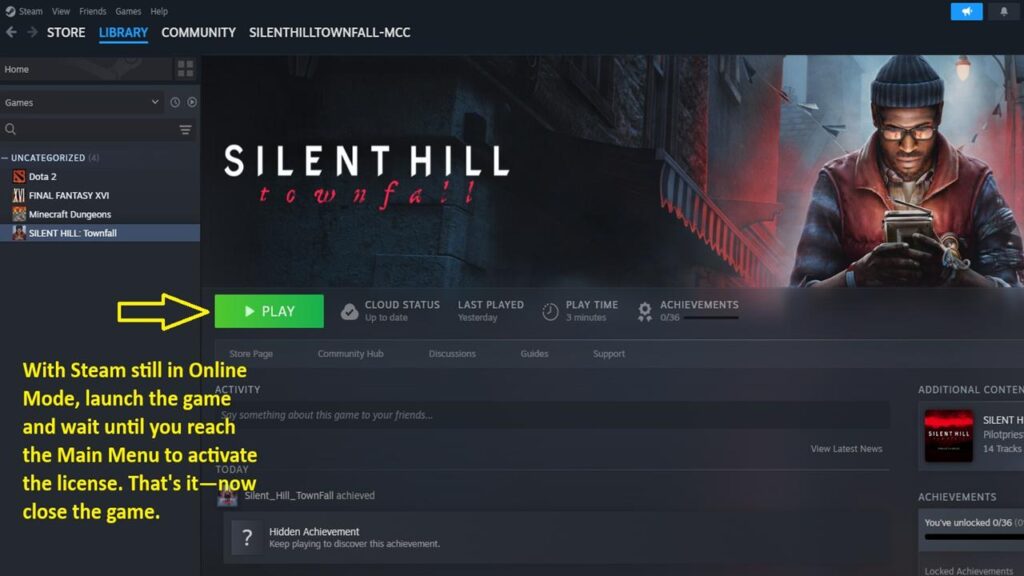
Launch the game once while online
Once installation is complete, launch the game with Steam still in online mode. Wait until the main menu appears, then close the game to complete this first launch.
-
4
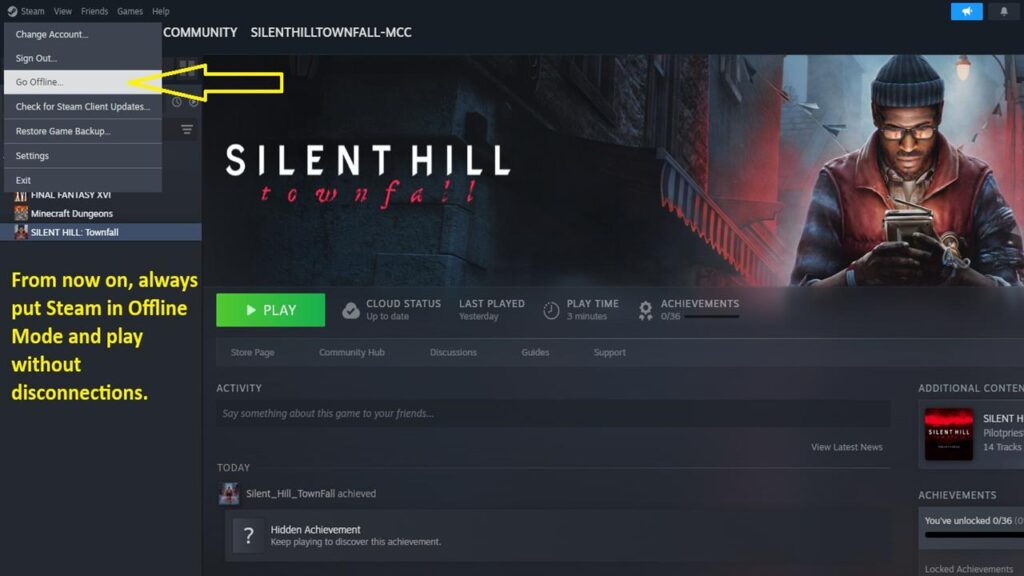
Go offline before playing
With the game closed, open the Steam menu and select Go Offline. Then launch the game. Always play in offline mode. Seller rule: online play is prohibited; continuing to play online may result in access being blocked without a refund.
-
5
Use Change account to switch accounts
When you need another account, choose Change account. Avoid Sign out or Log out to preserve saved access. Always return to the account sent by the seller to play the purchased game.
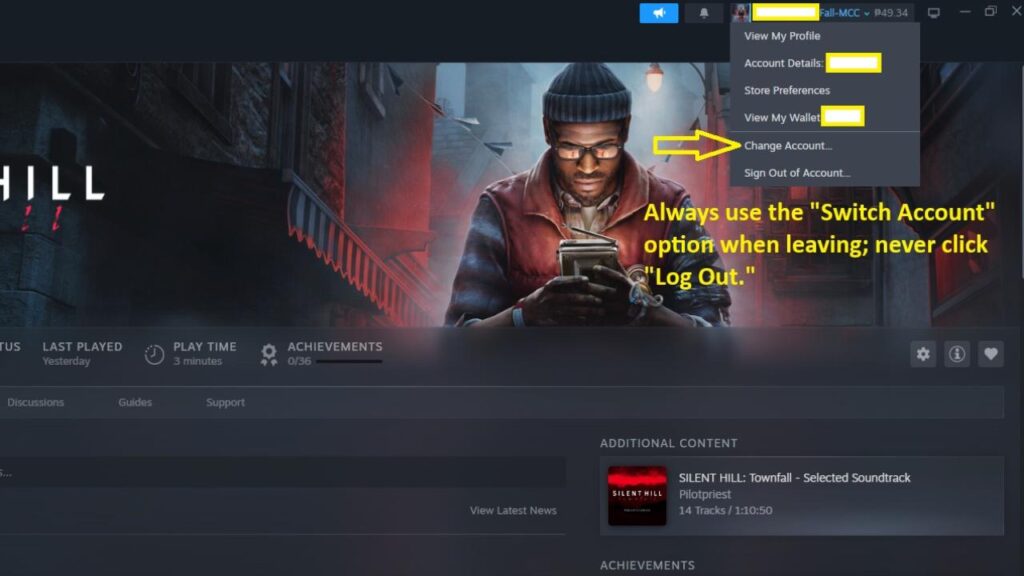
When switching accounts, use “Change account” instead of “Sign out” or “Log out”. This helps preserve saved access and avoids signing in again. Steam may still request a verification code for security.
With the account already unlocked, there is no need to redeem again. For access to another account, use the link or code the store sent you.